ETS2 · MULTIPLAYER
Install HaulMP and TruckersMP
From Steam and a backup to your first online drive. A step-by-step Windows guide with separate instructions for both multiplayer platforms.
1. Before you begin
HaulMP, TruckersMP and SCS Convoy are different systems. HaulMP and TruckersMP each use their own launcher and servers. They do not connect you to the DanishGamers AMP/Convoy server. The Convoy 128 CMD file is therefore not an installation step for these platforms.
| Platform | This guide covers | Launch from |
|---|---|---|
| HaulMP | Steam ETS2, Windows 10/11 | HaulMP launcher |
| TruckersMP | Steam ETS2 and/or ATS, Windows | TruckersMP launcher |
| SCS Convoy | The game's built-in multiplayer | Game → Convoy |
- Open Steam. Sign in to the account that owns your game. Install ETS2; also install ATS if you want to use ATS in TruckersMP. You do not need both games to play just one.
- Try single player first. Start the game, create or load a profile, and check that you can enter the cab. Save and close the game completely.
- Make a backup. Copy the relevant game user folder from Documents to a separate dated folder. ETS2 normally uses
Documents\Euro Truck Simulator 2; ATS usesDocuments\American Truck Simulator. Documents may be redirected to OneDrive. If you use a custom-homedir, copy your actual user folder. - Consider a separate multiplayer profile. This is our recommendation for keeping your career and mods separate. Preserve the original profile and your backup.
- Distinguish the two folders. Launchers need the Steam game installation, not the Documents folder containing profiles and
config.cfg. In Steam: Library → right-click the game → Properties → Installed Files → Browse. Note the folder that opens.
2. Install HaulMP
The official HaulMP website describes the project as an open beta. These instructions cover ETS2 on Windows 10/11. Access, server names and supported game versions may change during the beta.
- Open the official download page: haulmp.com/download. Use its Windows download button.
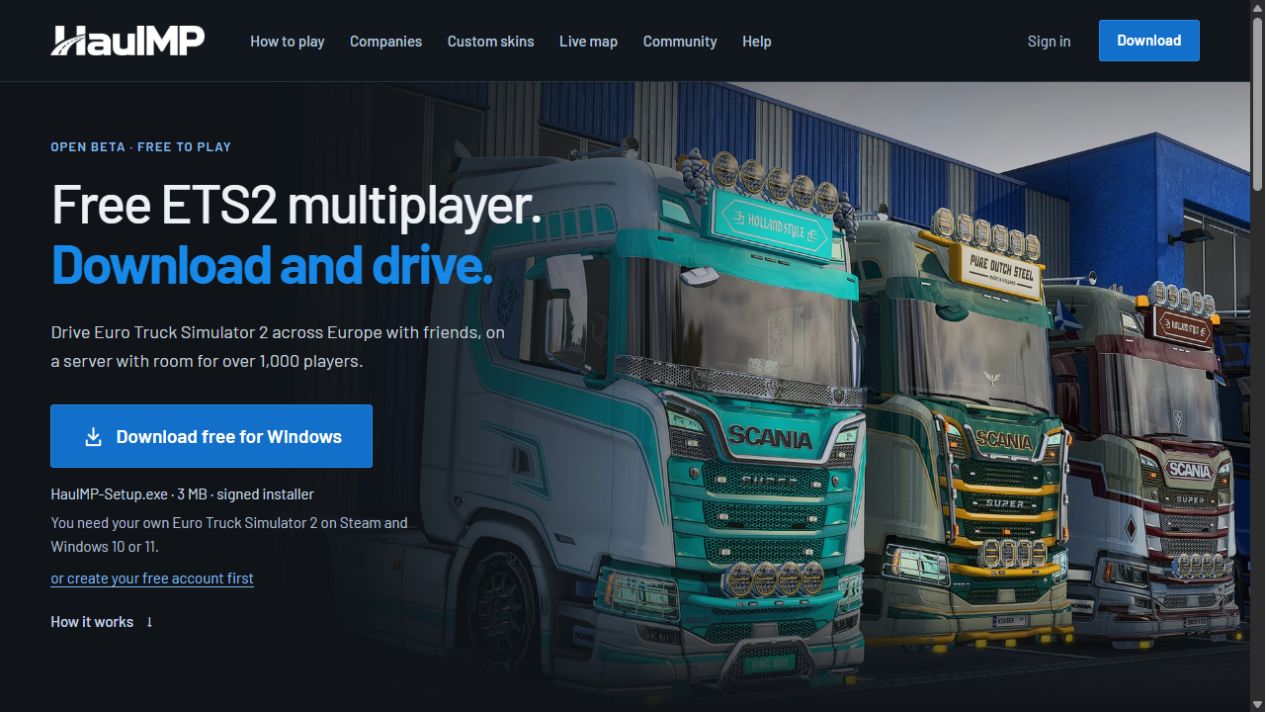
HaulMP 1: Click the blue Download free for Windows button on the official download page. Click the image for full size. - Install the launcher. The official page names the installer
HaulMP-Setup.exe. Open your downloaded file, read the installer prompts and finish setup. - Open HaulMP. Create an account through the launcher or the official website's account link. Sign in if you already have an account.
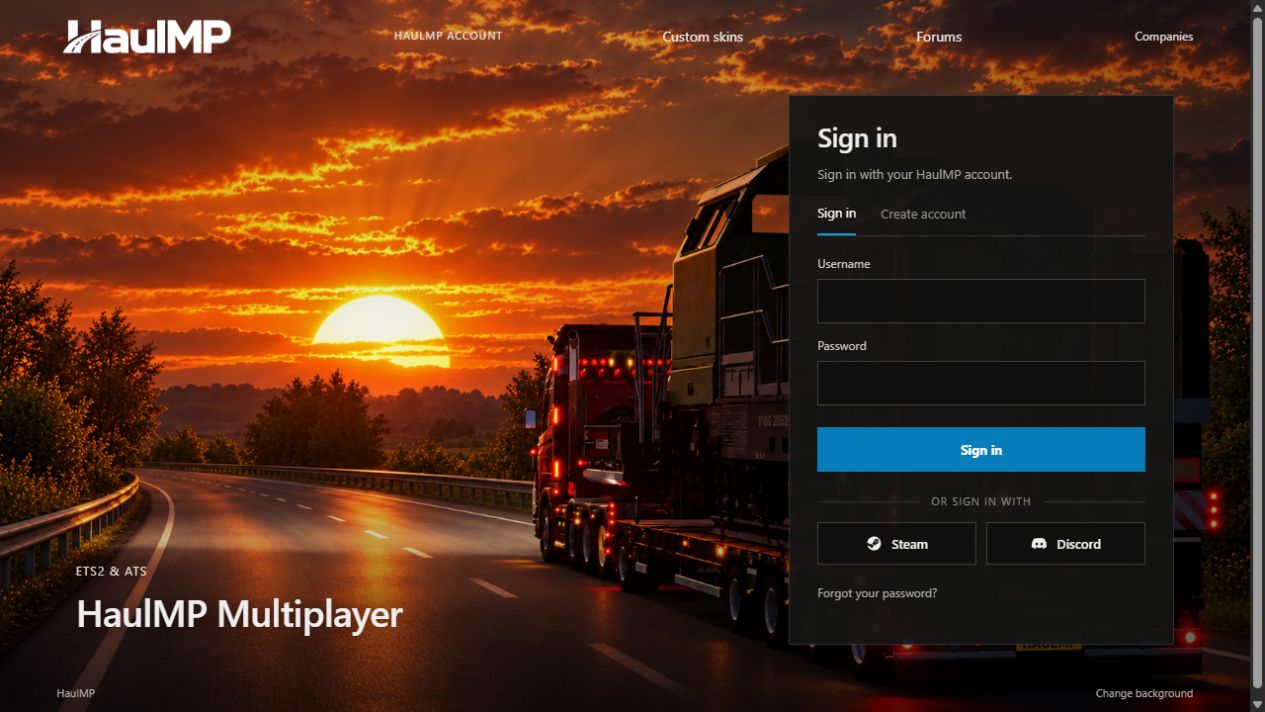
HaulMP 3a: Select Create account above the fields. If you already have an account, enter your Username and Password and click Sign in. Click the image for full size. 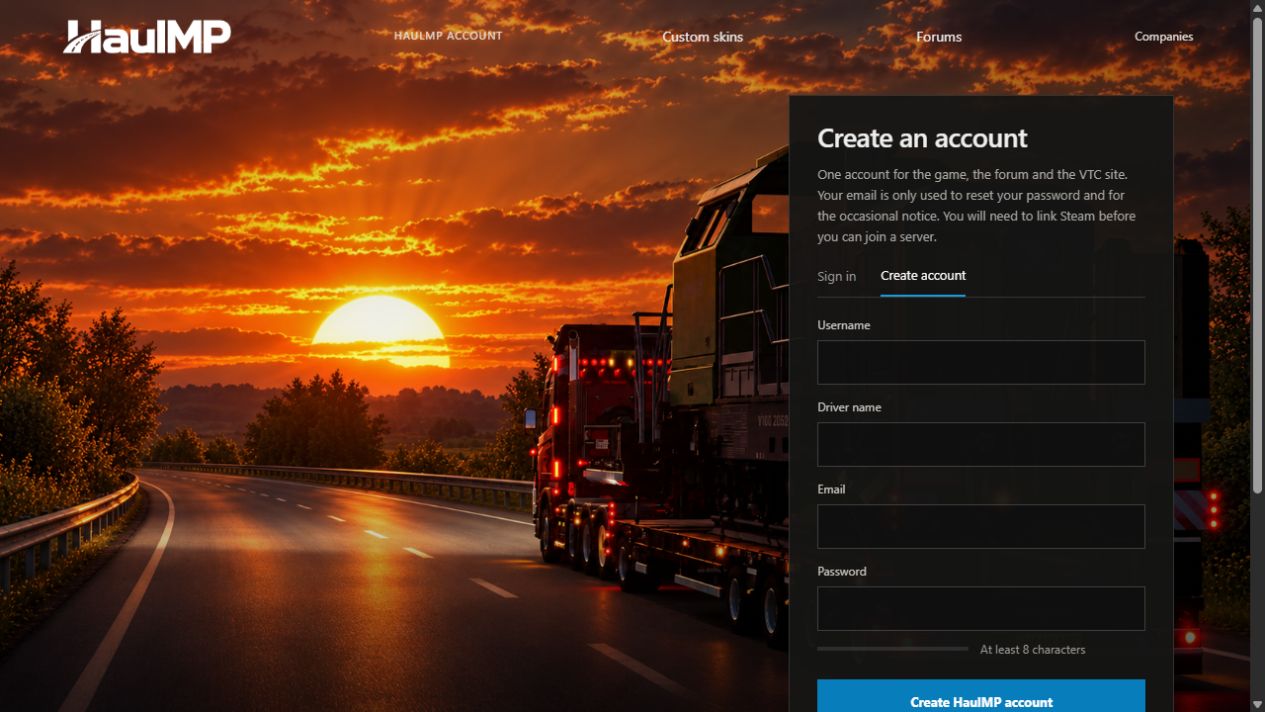
HaulMP 3b: Fill in Username, Driver name, Email and Password, then click Create HaulMP account at the bottom. Use your own details. Click the image for full size. - Link Steam. Follow HaulMP's account flow and link the Steam account that owns ETS2. Enter Steam credentials only on Steam's own page.
- Complete the requested launcher setup. If asked for your ETS2 folder, use the Steam installation found earlier. Allow required updates to finish before starting.
- Launch ETS2 through HaulMP. Starting directly from Steam opens ordinary game mode. Follow the login flow and choose the available public server. At the time of checking, the official guide refers to Server 1.
- Check your connection. Look for the platform's online/server display. Agree on the same server and meeting place with friends before driving. Use official HaulMP support for beta or access issues.
Discord and virtual trucking companies are community features. The official website links to support and Discord; joining a company is not required to drive independently. HaulMP help · Official introduction.
3. Install TruckersMP
A. Prepare Steam and register
- Open TruckersMP's registration guide, then select Register on the official website.

TruckersMP A1: Click Register at the top of the official website. The red outline in the source image marks the link. Click the image for full size. - You must own the relevant game on Steam. The registration guide's requirements image specifies more than 2 hours of playtime; Family Sharing is not supported. Also check the requirements shown during your current registration.
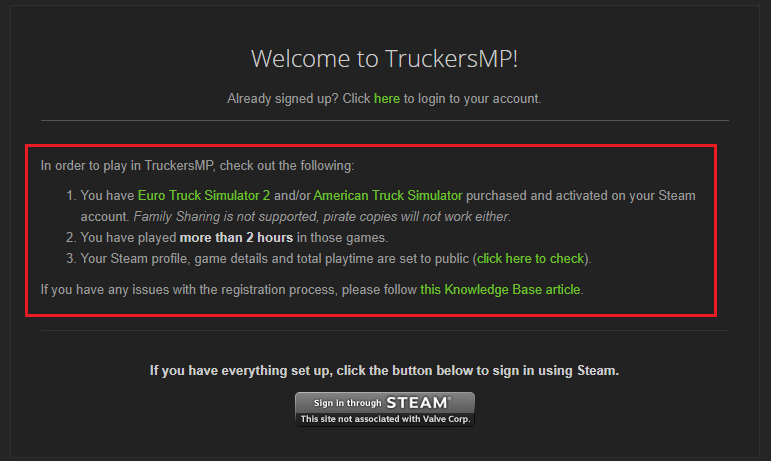
TruckersMP A2: Read the requirements in the red box. Once Steam is ready, use Sign in through STEAM below the text in step A4. Click the image for full size. - In Steam: Profile → Edit Profile → Privacy Settings. Set My Profile and Game Details to Public, and untick the option hiding total playtime. Check that ETS2/ATS itself is not marked private.
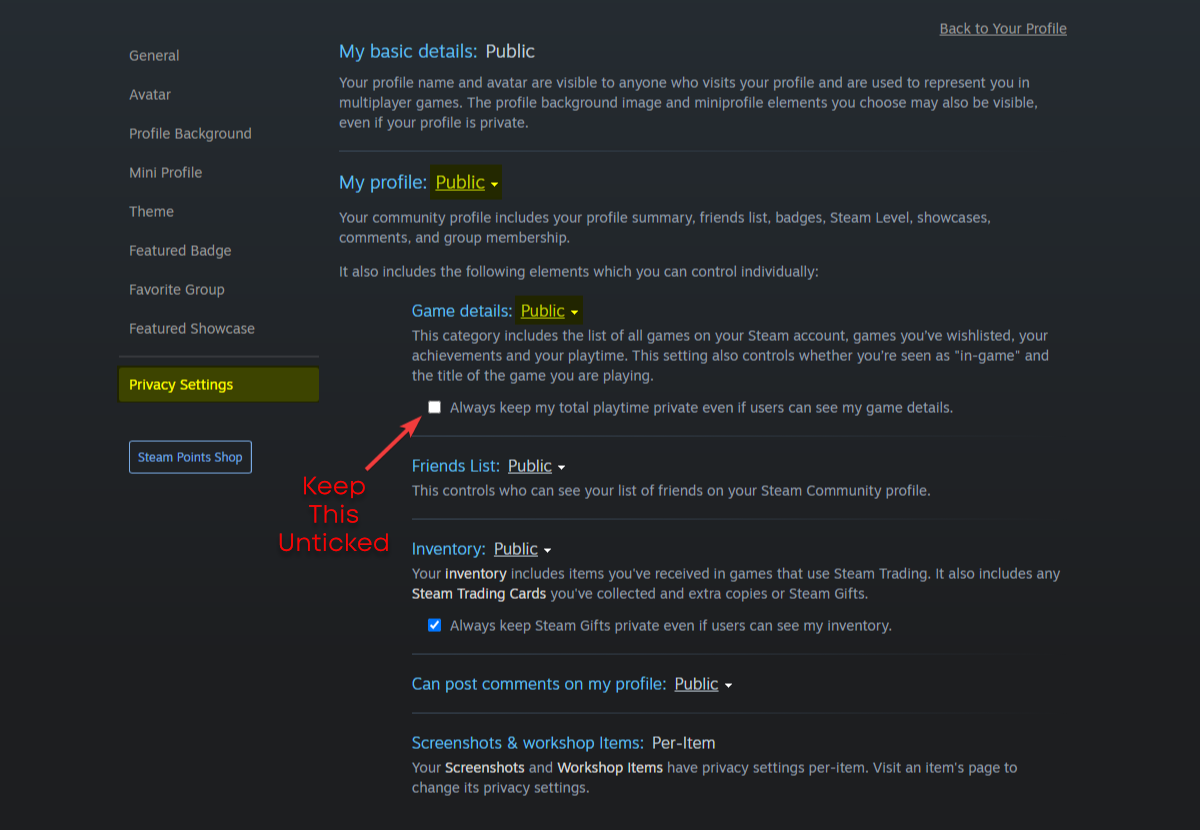
TruckersMP A3a: In Steam, select Privacy Settings. Set My profile and Game details to Public. Untick Always keep my total playtime private. Click the image for full size. 
TruckersMP A3b: The crossed-out eye marks a private game. If it appears for ETS2/ATS, open the game menu (…) and remove the private setting. Click the image for full size. - Select Sign in through Steam, use the account that owns the game, and complete the requested TruckersMP account details. Follow any activation instructions.
B. Install and start the launcher
- Sign in and download: open truckersmp.com/download. The official installation guide says you must be signed in to download.
- Run the installer
TruckersMP-Setup.exeand complete setup. Open the TruckersMP launcher. - Select the correct game. Choose ETS2 or ATS in the launcher. If automatic detection fails, set the appropriate Steam game folder in the launcher settings. Do not select Documents,
modorbin\win_x64as the game's root directory.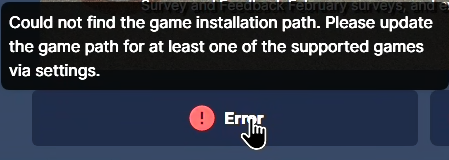
TruckersMP B3a: Error with this message means the launcher needs the game installation folder. Open Settings at the bottom left. Click the image for full size. 
TruckersMP B3b: Find Euro Truck Simulator 2 in Settings. Click Browse beside Path to the game directory and select the Steam game installation folder. ATS has its own field on the right. Click the image for full size. 
TruckersMP B3c: A green check means the launcher recognises the folder. Use your own path; do not copy the drive letter from the example. Click the image for full size. - Download the launcher's files. Select Download Updates if offered and let it finish. Start only when Play is ready.
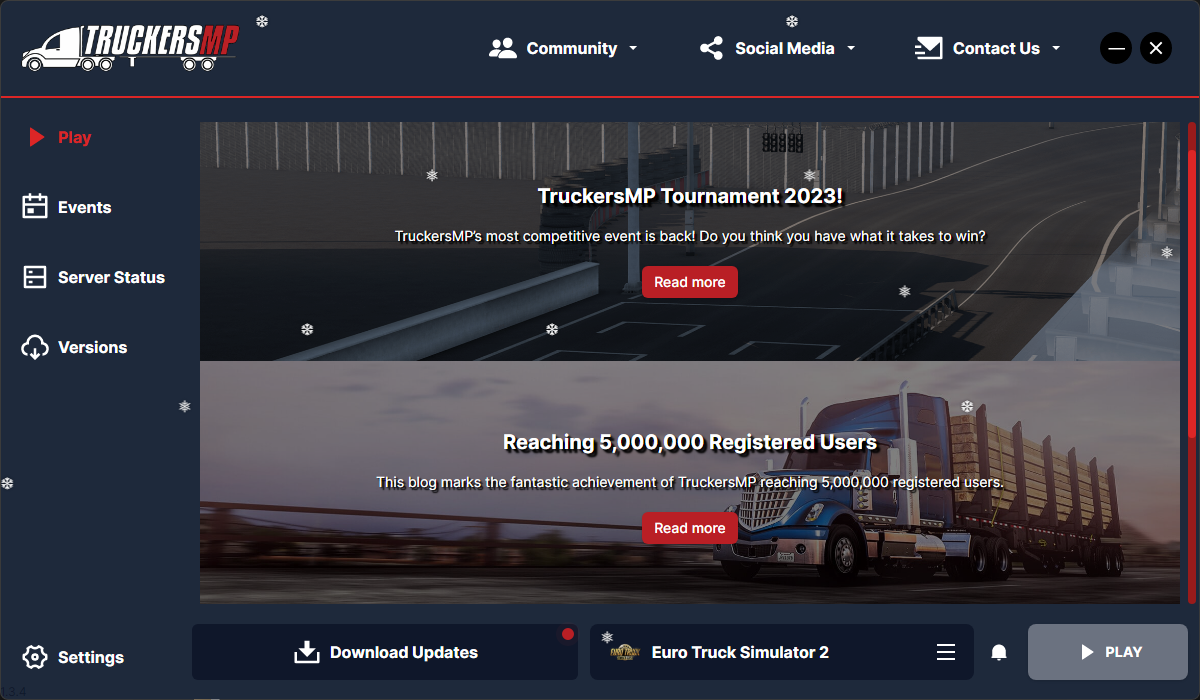
TruckersMP B4–B5: Click Download Updates at the bottom. Select Euro Truck Simulator 2 in the adjacent field, then click PLAY at the bottom right once updates finish. Settings is at the bottom left. Click the image for full size. - Launch and connect. Click Play, follow the game's TruckersMP login, choose a server and load your multiplayer profile. Check that you are online before looking for friends.
Follow the launcher's current compatibility requirements. Do not select an old Steam beta based on an outdated guide's version number. If your game build is unsupported, follow TruckersMP's current instructions.
4. Your first drive with friends
- Choose the same platform and server. A HaulMP player cannot meet a TruckersMP or SCS Convoy player. Being in the same city is not enough.
- Agree on a specific meeting place. Choose the same city and depot/parking area. Stop safely out of traffic before using chat or changing settings.
- Read the platform rules. Use only mods and extras supported by the platform and selected server. A mod working in single player or Convoy does not establish compatibility here. TruckersMP rules · HaulMP help.
- Start simple. Make your first connection without optional mods. ProMods servers have a separate installation procedure and content requirements; follow the platform's current ProMods guide if you choose them later.
- Check sound and controls while parked. Try a short drive before taking a long delivery.
5. Troubleshooting
The launcher cannot find the game
Find it in Steam → Properties → Installed Files → Browse. Select that installation folder in the launcher. ETS2 and ATS have different folders. Installing on D: is valid; do not blindly copy an example using C:.
TruckersMP cannot verify ownership or playtime
Check the linked Steam account, game ownership, more than two hours of recorded playtime, public profile, public game details and visible playtime. The game itself can be private even when your profile is public. Follow the error and registration guide before retrying.
Unsupported Game Version or a version mismatch
Record the error and versions. Update the launcher and consult the current TruckersMP knowledge base or HaulMP help. Change Steam beta branches only when official instructions require it, and back up first. A profile saved in a newer game build may not load in an older build.
The game starts in single player
Close it completely and start through your chosen multiplayer launcher. Keep Steam signed in. Check the platform's server/online display to confirm the connection.
The game closes or files are missing
Try ordinary single player first. If that also fails, use Steam → Properties → Installed Files → Verify integrity of game files. Wait for completion. If only multiplayer fails, record the launcher error and contact that platform's support. Do not add random DLL files from unofficial downloads. Steam's official file verification.
Windows or antivirus blocks installation
Check the download source and exact warning. Use only the official downloads above. Investigate malware detections; do not disable antivirus or automatically apply the CMD guide's approval to a different program. HaulMP says its installer is signed. If the publisher is unknown or different, stop and ask the platform's support.
The server is unavailable or friends are missing
Check platform, game, server and version. Read access requirements and service notices. HaulMP is in beta, so access and support can change. Neither the Convoy 128 CMD nor changes to your AMP server resolve faults on these separate services.
When requesting help, include the platform, Windows version, game, launcher/game versions and exact error. Hide email addresses, tokens and other account details in screenshots.
6. Return to single player or Convoy
- Close the multiplayer game and launcher.
- Launch ETS2 or ATS normally from Steam for ordinary play and SCS Convoy.
- Select the appropriate profile. Do not blindly load a profile saved in a newer game version into an older version.
- Close the game before restoring a backup. Also keep a copy of the current user folder before restoring.
You do not need to uninstall the Steam game to change launchers. This guide does not require changing your AMP server or existing CMD utilities.
Sources and verification
Checked 8 November 2026. Button labels and supported game builds can change. Installation is documented from official sources; neither client was installed or tested in-game as part of this guide.